Hello there,
I have updated all my brand of products to 1.21.2, it is mostly to catch up with the latest additions in the RLV. Although benign at first glance, this update will really add to the features of the RR products !
See for yourself :
* Touch plugin
- Added the latest RLV commands restricting touch (self, other people and in-world objects).
* Outfit plugin
- Added the ability to restrict some folders and their children, as well as to allow some folders and their children. Very useful if you want to precisely control your sub's ability to dress.
* Wear plugin (new plugin)
- Handles the ability to wear specific clothes and attachments (like the old Outfit plugin did in a coarser way).
* Unwear plugin (new plugin)
- Handles the ability to unwear specific clothes and attachments (like the old Outfit plugin did in a coarser way).
* LockShoes plugin (Vixen ankle cuffs only)
- Changed its access scheme, to allow the wearer to be able to resize the heel strap if needed.
Plus, two new tutorials to teach you how to use the Touch, Control, Wear, Unwear and Outfit plugins :
Touch/Control/Wear/Unwear plugins tutorial
Outfit plugin tutorial
You can update your restraints by going at any of these locations :
Marine's little shop
Little Shop of Kink
S&M Castle (*)
Once there, just touch the updater (it looks like an orb mounted on a pedestal), and follow the instructions.
(*) You may have to walk to the castle, find my vendor (you can't miss it), the updater is in a corner.
Have fun !
Marine
Saturday, June 4, 2011
Outfit plugin
Hello there,
Today I am going to tell you about a plugin I use all the time : the Outfit plugin. This one relies on RLV to work, it won't do anything if the captive is not using the RLV.
This is complex stuff, so please bear with me. There are a lot of things to explain, but fortunately they could be split into two posts. This one will talk about how to handle shared folders (restricting them, forcing them on or off etc), while the other post is about its child plugins Wear and Unwear, which work exactly the same way as Touch and Control, that's why they are melded into one post only (you can read that one here).
For this tutorial I will wear these pieces of clothing : a jacket, a shirt, a bra, a skirt, panties and boots.
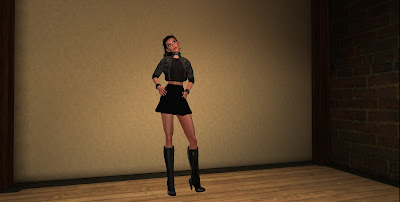
Yeah, I know, it looks like I am just missing my umbrella for a walk under the rain. Har har.
First off, I am going to talk about the two buttons named "Detach at" and "Remove at". These buttons are on the main page of the Outfit plugin, and are meant to detach things that the captive is wearing, quickly. Let's see... Right now I am wearing shoes, boots to be exact. Let's say my top wants to force me to remove them but does not want to browse my folders. All he has to do is to tell the plugin to make me remove "whatever outfit containing the shoes layer". So he clicks on "Remove at" and chooses "shoes". And immediately my shoes layer, as well as my left lower leg, right lower leg, left foot and right foot attachments are detached. Simple, easy. It would have done the same thing if he had pressed "Detach at" and chose, say, the left foot.
Now, let's head to the really interesting part : handling the shared folders through the Outfit plugin. You already know the RLV handles what is called "shared folders". In a nutshell, a shared folder is a folder in the inventory that is "exposed" to the scripts, so they can manipulate it. I won't detail how shared folders work here, there are tutorials on this blog, but let's see how to use the Outfit plugin to exploit them to the best of its abilities.
Browsing through the shared folders is easy. Shared folders are just that, folders, and as such they are organized in a hierarchical way, exactly like your files on your computer. And like in every hierarchical structure, there is a root that is the entry point to the whole data. So I click I click on my cuffs, I go to Plugins, select "Outfit", then "Root"...
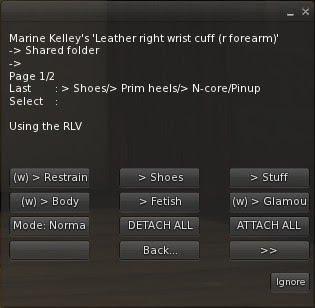
I'd like to find one particular outfit I am wearing, without knowing much about its name. It happens when your shared folders are beginning to become a bit populated, like mine... And I'd like to find my jacket.
Did you notice that little "(w)" sign before "> Glamour" ? This sign means "something is being worn somewhere in that general direction". So I press on this button, and get shown all the folders contained in it. Once again one of them shows "(w)". I press on "> Casual", I see that the "Jackets" button has the "(w)" sign, so I press it and...
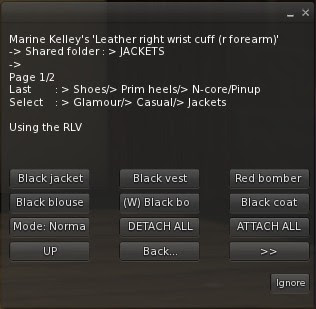
Found it ! The "Black bomber" is the outfit I am wearing. I know it because it shows a "(W)" sign now, not a "(w)" anymore. The capital "W" means "this outfit is worn". So I click on it and will decide what to do with it.
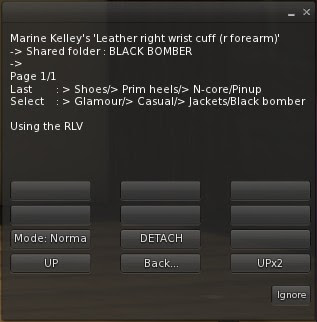
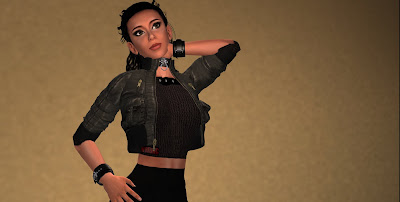
Before I go any further, let's say I am distracted by RL for more than 10 minutes. Since the Outfit menu has a 10 minutes timeout, when I come back it will have expired so it won't do anything when I press a button. So I press "Ignore" to close this now useless menu, but I do not want to walk all the way down to the jacket again ! That's what the "Selected" button is for : I click on my cuff, press "Last Plug" to go to the Outfit plugin again, and then choose "Selected". And I am lead right to where I left ! "Selected" means "the last folder I was on", as opposed to "Root" which means "the topmost folder" (in our case, "#RLV" itself).
Now, what options do I have ? Not many. There is no outfit contained in the "Black bomber" one so I cannot keep browsing that way (the shared folders are a hierarchy after all, it is a tree with a root, branches and leaves, and this particular outfit is a leaf, a dead-end). All I can do is detach it or walk back, or change its mode (more on that later).
I press "DETACH" and right away my jacket and its prims vanish.
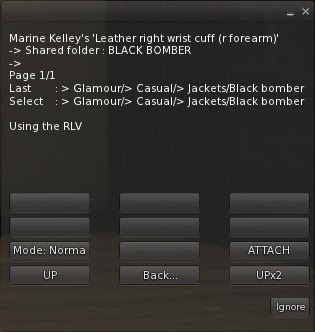
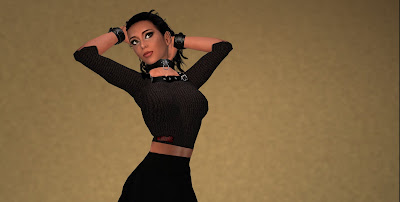
Naturally, if I pressed "ATTACH" now, it would come back, but this is not what I want.
This was pretty straightforward. Now on to the sexy stuff. No I'm not talking about lingerie ! I will show you how to allow and deny folders, and what it really means to do that.
Some of you might remember that in the past, the RLV was only able to restrict attaching and detaching clothes and attachments per name. For example, you could only prevent from attaching a jacket, a shirt, or something on spine, things like that. But you couldn't prevent from wearing one particular folder, or prevent everything except one particular folder. It can do that now, and this plugin is up to date to handle this new feature.
Before I begin, let me remind you exactly what this new feature is. You already know that your #RLV folder is a hierarchy of folders and items. By default you are able to wear and unwear what you want, except what is locked. The RLV is able to completely lock a folder and all its children out from you, making you incapable of wearing it (or removing it, depends on the option), renaming it, moving items in or out of it... It is secure. It is also able to prevent you from wearing or unwearing things that are NOT in your #RLV folder. In other words, it allows the top to control the captive's ability to wear things totally.
This is the theory. Let's see it in practice. Let's say my Mistress wants me to be able to wear only heels. Only N-Core heels, for that matter, and nothing else. No boots, no flatties, no sandals, nothing but high heels.
You may have noticed the "Mode" button on the menu. When clicking on it, it switches between "Normal", "Allow" and "Deny". And on the top of the menu, you see the current mode as well. Redundant you say ? Not really, let me explain why.
I click on my cuffs again, Plugins, Outfit, then I go to the Root folder, and Shoes.
This folder contains all my shoes, and I have lots. Ankle-high boots, knee-high boots, thigh-high boots etc... and all these must be restricted except on particular brand of one particular kind of boots.
Here is the folder in my inventory, entirely expanded :
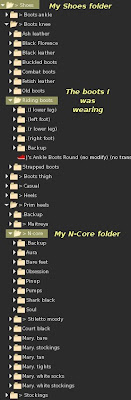
What I want is the top "Shoes" folder to be locked out, but NOT the "N-Core" folder. I am in the "Shoes" folder now, let's press "Mode" twice to set it to "Deny".
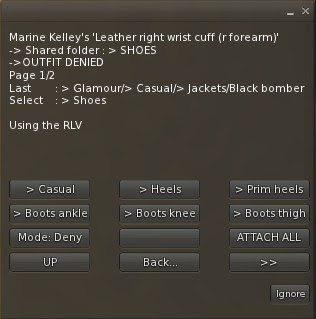
There, what I have just done is this :
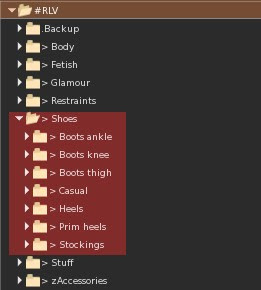
The red overlay indicates what I am prevented from wearing or unwearing.
But this means I cannot wear my n-core heels, right ? Yes, for now. I go to the "n-core" folder, it is contained in "prim heels" :

Oh, interesting here. The "Mode" button pretends it is "Normal", but I can try as I might, I won't be able to wear any of these shoes, or any other shoes whatsoever. But what is the top part of the menu saying ? "OUTFIT DENIED BY INHERITANCE"... What the hell does that mean... Remember that the "Shoes" folder and all its children was red, in the picture above ? Including "N-core" and the rest ? I denied only "Shoes" though, I did not deny the other folders one by one (imagine the task it would be). This means that since one of its parents is denied, this folder "n-core" is denied too. By, uh, inheritance.
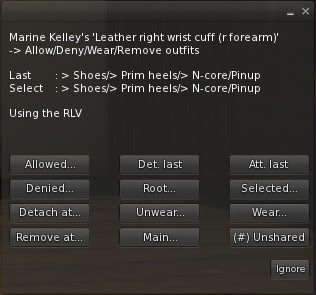
Now I want to specifically lift the lock for this folder. So I click on "Mode" once, to switch to "Allow". And in the process, the top part of the menu indicates "ALLOWED". How convenient. Here is what the menu looks like now :
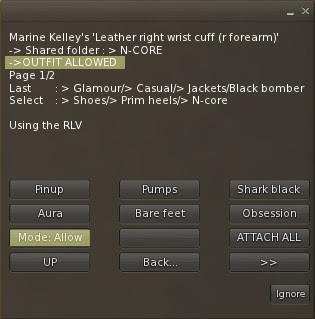
And my inventory is now treated like this :

The red still indicates what I am prevented from wearing, but there is an isle of green folders, that I am allowed to wear.
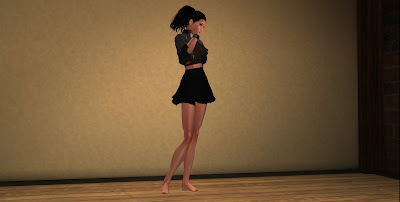
And I can now wear my n-core Pinup shoes ! These are the pumps I am wearing on my Vixen Leather vendor pic, btw. Lost of people asked.
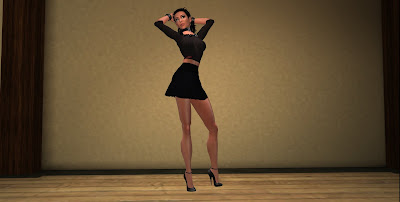
Lastly, managing all the allowed and denied folders can become tedious, when there are a lot. Fortunately the Outfit plugin gives you a way to check the lists, and to actually use them as shortcuts if you like.
I click on my cuff, and go to the main page of the Outfit plugin, then I click on "Allowed" :
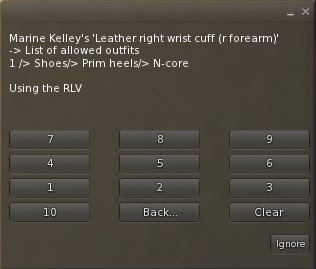
It shows the list of allowed folders, for now there is only one but this is really a list. And it also gives me a wall of numbers, plus a "Clear" button. If I pressed "Clear", it would clear the list instantly, and my Pinup shoes would be locked away from me again (to be exact, they would be locked ON me right now, since I am wearing them).
But instead of pressing "Clear", I press "1", which is the number of the N-core folder... and it brings me straight to that particular folder :
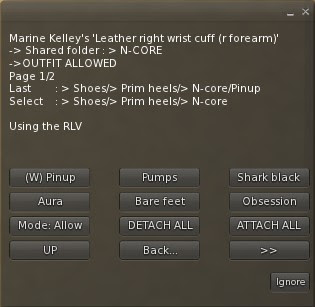
From there, I can change its mode or navigate at will, it saves a lot of time.
Now, if you are interested in the internals, here is what the RLV actually does when you ask it to wear or unwear an outfit :
- It checks if the folder is locked, if so, bail.
- It looks at all the parents, from that folder up to the root folder, and stops as soon as it finds one that is not "normal" (i.e. one that is either "allowed" or "denied", well, the RLV equivalent anyway). If it stops on a non-normal folder and that folder is "denied", then you can't wear the outfit. If it is "allowed", you can (even if one of its parents is "denied").
- If it went up to the root without finding a non-normal folder, all is well, the requested outfit can be worn or unworn.
There, it's pretty simple to understand but not so simple to explain. I find the red and green overlays on the pictures to be a lot more self-explanatory.
Have fun !
Marine
Today I am going to tell you about a plugin I use all the time : the Outfit plugin. This one relies on RLV to work, it won't do anything if the captive is not using the RLV.
This is complex stuff, so please bear with me. There are a lot of things to explain, but fortunately they could be split into two posts. This one will talk about how to handle shared folders (restricting them, forcing them on or off etc), while the other post is about its child plugins Wear and Unwear, which work exactly the same way as Touch and Control, that's why they are melded into one post only (you can read that one here).
For this tutorial I will wear these pieces of clothing : a jacket, a shirt, a bra, a skirt, panties and boots.

Yeah, I know, it looks like I am just missing my umbrella for a walk under the rain. Har har.
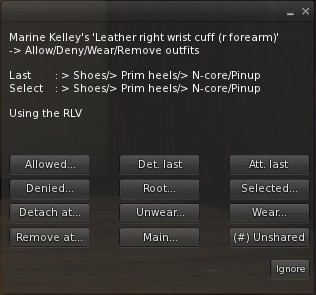
First off, I am going to talk about the two buttons named "Detach at" and "Remove at". These buttons are on the main page of the Outfit plugin, and are meant to detach things that the captive is wearing, quickly. Let's see... Right now I am wearing shoes, boots to be exact. Let's say my top wants to force me to remove them but does not want to browse my folders. All he has to do is to tell the plugin to make me remove "whatever outfit containing the shoes layer". So he clicks on "Remove at" and chooses "shoes". And immediately my shoes layer, as well as my left lower leg, right lower leg, left foot and right foot attachments are detached. Simple, easy. It would have done the same thing if he had pressed "Detach at" and chose, say, the left foot.

Now, let's head to the really interesting part : handling the shared folders through the Outfit plugin. You already know the RLV handles what is called "shared folders". In a nutshell, a shared folder is a folder in the inventory that is "exposed" to the scripts, so they can manipulate it. I won't detail how shared folders work here, there are tutorials on this blog, but let's see how to use the Outfit plugin to exploit them to the best of its abilities.
Browsing through the shared folders is easy. Shared folders are just that, folders, and as such they are organized in a hierarchical way, exactly like your files on your computer. And like in every hierarchical structure, there is a root that is the entry point to the whole data. So I click I click on my cuffs, I go to Plugins, select "Outfit", then "Root"...

I'd like to find one particular outfit I am wearing, without knowing much about its name. It happens when your shared folders are beginning to become a bit populated, like mine... And I'd like to find my jacket.
Did you notice that little "(w)" sign before "> Glamour" ? This sign means "something is being worn somewhere in that general direction". So I press on this button, and get shown all the folders contained in it. Once again one of them shows "(w)". I press on "> Casual", I see that the "Jackets" button has the "(w)" sign, so I press it and...

Found it ! The "Black bomber" is the outfit I am wearing. I know it because it shows a "(W)" sign now, not a "(w)" anymore. The capital "W" means "this outfit is worn". So I click on it and will decide what to do with it.


Before I go any further, let's say I am distracted by RL for more than 10 minutes. Since the Outfit menu has a 10 minutes timeout, when I come back it will have expired so it won't do anything when I press a button. So I press "Ignore" to close this now useless menu, but I do not want to walk all the way down to the jacket again ! That's what the "Selected" button is for : I click on my cuff, press "Last Plug" to go to the Outfit plugin again, and then choose "Selected". And I am lead right to where I left ! "Selected" means "the last folder I was on", as opposed to "Root" which means "the topmost folder" (in our case, "#RLV" itself).
Now, what options do I have ? Not many. There is no outfit contained in the "Black bomber" one so I cannot keep browsing that way (the shared folders are a hierarchy after all, it is a tree with a root, branches and leaves, and this particular outfit is a leaf, a dead-end). All I can do is detach it or walk back, or change its mode (more on that later).
I press "DETACH" and right away my jacket and its prims vanish.


Naturally, if I pressed "ATTACH" now, it would come back, but this is not what I want.
This was pretty straightforward. Now on to the sexy stuff. No I'm not talking about lingerie ! I will show you how to allow and deny folders, and what it really means to do that.
Some of you might remember that in the past, the RLV was only able to restrict attaching and detaching clothes and attachments per name. For example, you could only prevent from attaching a jacket, a shirt, or something on spine, things like that. But you couldn't prevent from wearing one particular folder, or prevent everything except one particular folder. It can do that now, and this plugin is up to date to handle this new feature.
Before I begin, let me remind you exactly what this new feature is. You already know that your #RLV folder is a hierarchy of folders and items. By default you are able to wear and unwear what you want, except what is locked. The RLV is able to completely lock a folder and all its children out from you, making you incapable of wearing it (or removing it, depends on the option), renaming it, moving items in or out of it... It is secure. It is also able to prevent you from wearing or unwearing things that are NOT in your #RLV folder. In other words, it allows the top to control the captive's ability to wear things totally.
This is the theory. Let's see it in practice. Let's say my Mistress wants me to be able to wear only heels. Only N-Core heels, for that matter, and nothing else. No boots, no flatties, no sandals, nothing but high heels.
You may have noticed the "Mode" button on the menu. When clicking on it, it switches between "Normal", "Allow" and "Deny". And on the top of the menu, you see the current mode as well. Redundant you say ? Not really, let me explain why.
I click on my cuffs again, Plugins, Outfit, then I go to the Root folder, and Shoes.
This folder contains all my shoes, and I have lots. Ankle-high boots, knee-high boots, thigh-high boots etc... and all these must be restricted except on particular brand of one particular kind of boots.
Here is the folder in my inventory, entirely expanded :

What I want is the top "Shoes" folder to be locked out, but NOT the "N-Core" folder. I am in the "Shoes" folder now, let's press "Mode" twice to set it to "Deny".

There, what I have just done is this :

The red overlay indicates what I am prevented from wearing or unwearing.
But this means I cannot wear my n-core heels, right ? Yes, for now. I go to the "n-core" folder, it is contained in "prim heels" :

Oh, interesting here. The "Mode" button pretends it is "Normal", but I can try as I might, I won't be able to wear any of these shoes, or any other shoes whatsoever. But what is the top part of the menu saying ? "OUTFIT DENIED BY INHERITANCE"... What the hell does that mean... Remember that the "Shoes" folder and all its children was red, in the picture above ? Including "N-core" and the rest ? I denied only "Shoes" though, I did not deny the other folders one by one (imagine the task it would be). This means that since one of its parents is denied, this folder "n-core" is denied too. By, uh, inheritance.
Now I want to specifically lift the lock for this folder. So I click on "Mode" once, to switch to "Allow". And in the process, the top part of the menu indicates "ALLOWED". How convenient. Here is what the menu looks like now :

And my inventory is now treated like this :

The red still indicates what I am prevented from wearing, but there is an isle of green folders, that I am allowed to wear.
And I can now wear my n-core Pinup shoes ! These are the pumps I am wearing on my Vixen Leather vendor pic, btw. Lost of people asked.

Lastly, managing all the allowed and denied folders can become tedious, when there are a lot. Fortunately the Outfit plugin gives you a way to check the lists, and to actually use them as shortcuts if you like.
I click on my cuff, and go to the main page of the Outfit plugin, then I click on "Allowed" :

It shows the list of allowed folders, for now there is only one but this is really a list. And it also gives me a wall of numbers, plus a "Clear" button. If I pressed "Clear", it would clear the list instantly, and my Pinup shoes would be locked away from me again (to be exact, they would be locked ON me right now, since I am wearing them).
But instead of pressing "Clear", I press "1", which is the number of the N-core folder... and it brings me straight to that particular folder :

From there, I can change its mode or navigate at will, it saves a lot of time.
Now, if you are interested in the internals, here is what the RLV actually does when you ask it to wear or unwear an outfit :
- It checks if the folder is locked, if so, bail.
- It looks at all the parents, from that folder up to the root folder, and stops as soon as it finds one that is not "normal" (i.e. one that is either "allowed" or "denied", well, the RLV equivalent anyway). If it stops on a non-normal folder and that folder is "denied", then you can't wear the outfit. If it is "allowed", you can (even if one of its parents is "denied").
- If it went up to the root without finding a non-normal folder, all is well, the requested outfit can be worn or unworn.
There, it's pretty simple to understand but not so simple to explain. I find the red and green overlays on the pictures to be a lot more self-explanatory.
Have fun !
Marine

Touch plugin... and its siblings Control, Wear and Unwear
Hi !
Today I am going to talk about not one but four plugins at the same time ! These plugins, although having apparently nothing in common, share the exact same architecture and it is easy to understand what they all do (and how to use them efficiently) when you understand this very architecture.
Let's go. For this tutorial I will use the Touch plugin as an example, but keep in mind that the others work the same way. I will highlight the differences at the end of this post.
If your own Touch and Control plugins do not look like this one, please update your RR products. These versions are still fairly new at the time of this writing.
The Touch plugin is meant to prevent the captive from touching objects, and is normally found in arms restraints (when your hands are restrained, you can't use devices). In the past, it was used only to restrict touching far, since the arms restraints could "block" the captive (i.e. raise a HUD that would take the entire screen, blocking clicks, edit and rez). But recently the RLV has been added a few commands to control what could be touched and what could not, in a much finer grain than before. Hence the new Touch plugin.
Moreso, depending on the way her cuffs are locked, the captive may or may not be able to touch this or that. For example, with her cuffs locked in front, she may still be able to touch someone else's attachments, whereas she couldn't if her hands were cuffed in the back.
So for every lock type (hands in front, hands in back...), the top might wants to be able to decide what can be touched and what cannot, and to not have to set these restrictions everytime the lock changes.
In other words, the restrictions are organized like a matrix. For each lock, indicate which restrictions are to be in effect. And to represent this matrix, locks would be on the X axis, while restrictions would be on the Y axis. Does that make any sense to you ? Don't worry, it will soon.
I click on my Vixen leather handcuffs, and I go to the Touch plugin.
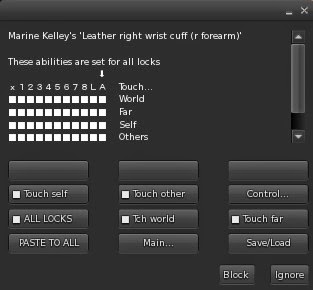
Oh, see ? A matrix ! Surprise ! A full square means "the captive is able to..." while an empty square means "the captive is restricted from...". For now all the squares are full because the restraint is new.
By default all the restrictions are lifted. This means that if you've just bought your restraints, your touch won't be restricted in any way even when you lock them on you. How to set a restriction then ?
Before we do anything, let me explain what is displayed a little. There is a small "x", followed by a row of numbers from 1 to 8, then a "L", and then a "A". And an arrow pointing to the "A".
This row represents the locks. "x" means "unlocked" (but all the restrictions are lifted when the restraint is unlocked, so you don't need to bother with that one, it is displayed for a reason I will explain later), the numbers "1" to "8" correspond to the 8 locks, "L" means simply "locked" (without a pose), and finally "A" means "All locks".
Aha. The arrow points to "A", and the "ALL LOCKS" button is "on". This is because by default the restrictions you set are applied whatever lock you choose.
Wait, doesn't it defeat the very idea of "one different set of restrictions per lock" ? Yes it does, but not everyone wants the fine-grain control that this matrix offers. Although you might want the realism of not being able to touch someone else's attachments only when your hands are cuffed behind your back, you're no here to punch holes into a matrix. You're here to have fun ! Therefore, by default, you simply decide what restrictions to apply, and that's it. If you want finer control, it is as simple as pressing the "ALL LOCKS" button. You'll see in a minute.
But enough talk ! Let's try it. I am wearing my Vixen cuffs now, and I click on them and lock them behind my back. As I didn't change anything on the Touch plugin, I am still able to touch objects in-world, whether they are near or far, and I can touch my own attachments and those worn by other people. As if I wasn't restrained at all.
I click on them and go to the Touch plugin, then press "Touch far". What happens ? Let's see the matrix now :
The matrix has a hole in it now, the square at the intersection of "A" and "Far" is now empty. This means "For ALL the locks, the captive cannot touch objects that are FAR". Farther than arms reach, that is. That's farther than 1.5 meter away, folks. Let's check this... I touch the door over there, nothing happens (it normally opens when touched). I walk closer and try again, ok that works now, I must just be near it. When I touch my collar it gives me its own menu. I can touch everything around me EXCEPT objects that too far away. It makes it feel more realistic, goodbye telekinesis !
Since my hands are cuffed behind my back, it would make sense that I'd be unable to overpower someone nearby, therefore I should be unable to click on their attachments as well. However I should still be able to touch my own attachments (for example a gag, you can still raise your hands at mouth level when cuffed like this, it does not require much flexibility), and objects that are not worn by anyone, like doors. I should be able to open a door in this kind of bondage, I just have to be very close that's all.
So I press the "Touch other" button to set this restriction, and another hole is punched into the matrix, still under "A". This now means "For ALL the locks, the captive cannot touch objects that are FAR, or objects that are worn by OTHER people". Hmm, this bondage is starting to feel real, now...

Ok, this is all good and well, but what if my hands were cuffed in front of me instead of behind my back ? I still wouldn't be able to reach objects that are far, but should I be able to, say, lock someone else's cuffs ? I think so. But how ? If I pressed "Touch far" again now, I would be able to touch far regardless of how my hands are cuffed, that's not very realistic...
This is where I must disengage "ALL LOCKS". This button acts like an override to simplify the handling of restrictions for people who don't want to bother about realism. But I do, so I press it to remove the override. And now the plugin goes from 1D to 2D (no there is no 3D yet :p ).

Notice that the arrow has shifted from the "A" column to the "2" column. Why "2" ? Because my hands are cuffed behind my back, and that is the second lock on the main menu. The first one being "hands in front".
And guess what ? I am totally unrestricted again. I can touch far, and I can touch other people's attachments. Great, did I do all this for nothing ? Not really. Let's see what happened here.
The "A" column has two holes, the ones we've set earlier, "touch other" and "touch far". This has not changed, but the arrow is not on "A" anymore, it is on "2", and "2" has no holes in it. In other words, the restrictions are all lifted again. Now suppose I am lazy and... no wait, scratch the "suppose" part, I AM lazy. I don't want to set the restrictions for every lock, that would be a waste of time that could be better used, for example on having fun. Let's do a little magic that is called copy/pasting. Remember the restrictions are more or less ok when the "ALL LOCKS" override is engaged. I will copy them and paste them to all the locks, individually.
I press "ALL LOCKS" again, engaging the override. Then I press "PASTE TO ALL", and...

What just happened ? The "A" column has been copied and pasted over all the other columns. Now I can tweak each individual lock if I want to. I press "ALL LOCKS" one more time to disengage the override again, and the arrow goes back to "2", the current lock.

On a side note, I can do this the other way around too, by copying the settings of the current lock (when "ALL LOCKS" is disengaged, "PASTE TO ALL" becomes "COPY", which actually pastes the current column to the "A" one, and then I can paste the latter to every column with the method I have shown above), but no need to do this now.
Now, I lock my hands in front. I am still unable to touch far (this is normal), but I would like to be able to touch other people's attachments.

Nothing's easier, I press the "Touch other" button to lift that restriction. And now the matrix looks like this :
A square has been filled, I can now touch other people's attachments again... but only when my hands are cuffed in front. If I cuff them behind my back again, that ability is removed. This is fine-grain control !
Now you know the most part of how the Touch plugin works, and by extension, how the Control plugin works (with its Edit, Rez, Map, Inventory and other restrictions), as well as how Wear and Unwear work (they restrict from wearing or unwearing clothing layers and attachments). Also, since the Touch plugin may be in the same restraint than the Control plugin, there is a shortcut to switch from one to the other. Same for Wear and Unwear (and their common parent "Outfit", for which I will write a full tutorial too).
There are a few things to note though, I know this has been a long read, but you might be interested in this...
I have said that the "x" column was unused. This is not entirely true. The top is actually able to set the restrictions on the captive even when the restraint is unlocked. Although this doesn't make sense at first glance, this is actually very handy when used in conjunction with, say, an autolock. When the restraint is unlocked, every button pressed on the Touch plugin will modify the "x" column. When the restraint is finally locked, the contents of the "x" column are pasted onto the current lock, or on the "A" column, depending on the override. But this happens only if the "x" column has been changed since the last unlock. Long story short, if you modify the restrictions while the restraint is unlocked, no problem. They will be applied next time it is locked, as intended. You won't even have to bother about it.
Lastly, it is possible to save the matrix and to load it again. After all, this matrix is just a series of 0s and 1s, right ? It is just text. And as such it can be copied to a text file and said on the chat.
I press the "Save/Load" button, and immediately I hear this from the cuffs :
Leather right wrist cuff (r forearm) whispers: Current configuration (save it in a text file for later) :
111111111110010000000011111111111000000000001111111111111111111111111111111111111111111111111111111,0
If you want to load another configuration, please type it on the public chat channel.
This is the contents of the memory at this time, after I have set the restrictions how I like them. So I copy them to a text file somewhere on my computer.
Now let's assume some time passed and the plugin was reset for some reason (for example after an update), the restrictions would be clear again, and I don't want to set them one by one again. The menu would look like this, leaving me a whole lot of work to do again :
This is where the "Save/Load" button helps me again, I press it, and I hear this :
Leather right wrist cuff (r forearm) whispers: Current configuration (save it in a text file for later) :
111111111110000000000011111111111010000000001111111111111111111111111111111111111111111111111111111,0
If you want to load another configuration, please type it on the public chat channel.
Now it's telling me the contents of its memory again, but it's clear. However it also tells me that it is listening to my chat, in case I'd have some data to give it. It just so happens, I do ! I copy the contents of my text file directly on the chat :
Me: 111111111110000000000011111111111010000000001111111111111111111111111111111111111111111111111111111,0
Yeah, I speak binary fluently. Hehe. At least binary that this plugin can understand. And it does understand it, because now the matrix shown on the menu is exactly the same as it was before it got reset. I just loaded the old configuration :

Personally, here is the configuration I use on the Vixen cuffs :

This means that with the hands in front (first and third locks), I can touch other people's attachments, and with the hands chained simply together (front or back, that's first and second locks), I can touch my own. In all other locks, I can neither touch my attachments not other people's, and under no circumstances can I touch objects that are far. But since the Vixen cuffs do not cover the hands (contrary to, say, the armbinder), I can always touch objects in-world.
If you're interested, here are my favorite configurations for different arms restraints of mine. Just press "Save/Load" on the plugin menu and say one of these on the chat, and you'll get the same configuration :
Elegance cuffs : 111100011110000000000011010001111110000011111111111111111111111111111111111111111111111111111111111,0
Armbinder : 010000000000000000000000000000000000000000001111111111111111111111111111111111111111111111111111111,0
Police cuffs : 111101011110000000000011010001111110000011111111111111111111111111111111111111111111111111111111111,0
Vixen cuffs : 111111111110000000000001100000000110100000001111111111111111111111111111111111111111111111111111111,0
You're still here ? Oh, yes, forgive me I forgot. This post is about 4 plugins, not just Touch... Well there is not much else to say, what I have explained for Touch also applies to Control, Wear and Unwear. Here are the main differences though :
- Control also allows the top to add exceptions to the channels restriction (which prevents the captive from sending messages on non-public channels).
- Wear prevents not only from wearing clothing layers and attachments, but also all the folders that contain anything that is meant to be worn on said layers and attachment points. For example, if you restrict "top", the captive will not only be unable to wear a shirt, undershirt or jacket, or anything on spine or chest, but even folders that contain shirts, undershirts etc. You don't want her to wear anything to cover the upper part of her body, that's what this option means.
- Likewise, Unwear prevents not only from removing clothing layers and attachments, but also any folder that contains clothes or attachments worn on the specified points. If you restrict "top", she will be unable to detach her spine and chest attachments, as well as remove her shirt, undershirt or jacket, as well as any accessory contained in a folder that also contains one of these parts.
There, I think that's it. Whew ! Thank you for reading this far !
Have fun,
Marine
Today I am going to talk about not one but four plugins at the same time ! These plugins, although having apparently nothing in common, share the exact same architecture and it is easy to understand what they all do (and how to use them efficiently) when you understand this very architecture.
Let's go. For this tutorial I will use the Touch plugin as an example, but keep in mind that the others work the same way. I will highlight the differences at the end of this post.
If your own Touch and Control plugins do not look like this one, please update your RR products. These versions are still fairly new at the time of this writing.
The Touch plugin is meant to prevent the captive from touching objects, and is normally found in arms restraints (when your hands are restrained, you can't use devices). In the past, it was used only to restrict touching far, since the arms restraints could "block" the captive (i.e. raise a HUD that would take the entire screen, blocking clicks, edit and rez). But recently the RLV has been added a few commands to control what could be touched and what could not, in a much finer grain than before. Hence the new Touch plugin.
Moreso, depending on the way her cuffs are locked, the captive may or may not be able to touch this or that. For example, with her cuffs locked in front, she may still be able to touch someone else's attachments, whereas she couldn't if her hands were cuffed in the back.
So for every lock type (hands in front, hands in back...), the top might wants to be able to decide what can be touched and what cannot, and to not have to set these restrictions everytime the lock changes.
In other words, the restrictions are organized like a matrix. For each lock, indicate which restrictions are to be in effect. And to represent this matrix, locks would be on the X axis, while restrictions would be on the Y axis. Does that make any sense to you ? Don't worry, it will soon.
I click on my Vixen leather handcuffs, and I go to the Touch plugin.
Oh, see ? A matrix ! Surprise ! A full square means "the captive is able to..." while an empty square means "the captive is restricted from...". For now all the squares are full because the restraint is new.
By default all the restrictions are lifted. This means that if you've just bought your restraints, your touch won't be restricted in any way even when you lock them on you. How to set a restriction then ?
Before we do anything, let me explain what is displayed a little. There is a small "x", followed by a row of numbers from 1 to 8, then a "L", and then a "A". And an arrow pointing to the "A".
This row represents the locks. "x" means "unlocked" (but all the restrictions are lifted when the restraint is unlocked, so you don't need to bother with that one, it is displayed for a reason I will explain later), the numbers "1" to "8" correspond to the 8 locks, "L" means simply "locked" (without a pose), and finally "A" means "All locks".
Aha. The arrow points to "A", and the "ALL LOCKS" button is "on". This is because by default the restrictions you set are applied whatever lock you choose.
Wait, doesn't it defeat the very idea of "one different set of restrictions per lock" ? Yes it does, but not everyone wants the fine-grain control that this matrix offers. Although you might want the realism of not being able to touch someone else's attachments only when your hands are cuffed behind your back, you're no here to punch holes into a matrix. You're here to have fun ! Therefore, by default, you simply decide what restrictions to apply, and that's it. If you want finer control, it is as simple as pressing the "ALL LOCKS" button. You'll see in a minute.
But enough talk ! Let's try it. I am wearing my Vixen cuffs now, and I click on them and lock them behind my back. As I didn't change anything on the Touch plugin, I am still able to touch objects in-world, whether they are near or far, and I can touch my own attachments and those worn by other people. As if I wasn't restrained at all.
I click on them and go to the Touch plugin, then press "Touch far". What happens ? Let's see the matrix now :

The matrix has a hole in it now, the square at the intersection of "A" and "Far" is now empty. This means "For ALL the locks, the captive cannot touch objects that are FAR". Farther than arms reach, that is. That's farther than 1.5 meter away, folks. Let's check this... I touch the door over there, nothing happens (it normally opens when touched). I walk closer and try again, ok that works now, I must just be near it. When I touch my collar it gives me its own menu. I can touch everything around me EXCEPT objects that too far away. It makes it feel more realistic, goodbye telekinesis !
Since my hands are cuffed behind my back, it would make sense that I'd be unable to overpower someone nearby, therefore I should be unable to click on their attachments as well. However I should still be able to touch my own attachments (for example a gag, you can still raise your hands at mouth level when cuffed like this, it does not require much flexibility), and objects that are not worn by anyone, like doors. I should be able to open a door in this kind of bondage, I just have to be very close that's all.
So I press the "Touch other" button to set this restriction, and another hole is punched into the matrix, still under "A". This now means "For ALL the locks, the captive cannot touch objects that are FAR, or objects that are worn by OTHER people". Hmm, this bondage is starting to feel real, now...
This is where I must disengage "ALL LOCKS". This button acts like an override to simplify the handling of restrictions for people who don't want to bother about realism. But I do, so I press it to remove the override. And now the plugin goes from 1D to 2D (no there is no 3D yet :p ).
Notice that the arrow has shifted from the "A" column to the "2" column. Why "2" ? Because my hands are cuffed behind my back, and that is the second lock on the main menu. The first one being "hands in front".
And guess what ? I am totally unrestricted again. I can touch far, and I can touch other people's attachments. Great, did I do all this for nothing ? Not really. Let's see what happened here.
The "A" column has two holes, the ones we've set earlier, "touch other" and "touch far". This has not changed, but the arrow is not on "A" anymore, it is on "2", and "2" has no holes in it. In other words, the restrictions are all lifted again. Now suppose I am lazy and... no wait, scratch the "suppose" part, I AM lazy. I don't want to set the restrictions for every lock, that would be a waste of time that could be better used, for example on having fun. Let's do a little magic that is called copy/pasting. Remember the restrictions are more or less ok when the "ALL LOCKS" override is engaged. I will copy them and paste them to all the locks, individually.
I press "ALL LOCKS" again, engaging the override. Then I press "PASTE TO ALL", and...
On a side note, I can do this the other way around too, by copying the settings of the current lock (when "ALL LOCKS" is disengaged, "PASTE TO ALL" becomes "COPY", which actually pastes the current column to the "A" one, and then I can paste the latter to every column with the method I have shown above), but no need to do this now.
Now, I lock my hands in front. I am still unable to touch far (this is normal), but I would like to be able to touch other people's attachments.
Nothing's easier, I press the "Touch other" button to lift that restriction. And now the matrix looks like this :
A square has been filled, I can now touch other people's attachments again... but only when my hands are cuffed in front. If I cuff them behind my back again, that ability is removed. This is fine-grain control !
Now you know the most part of how the Touch plugin works, and by extension, how the Control plugin works (with its Edit, Rez, Map, Inventory and other restrictions), as well as how Wear and Unwear work (they restrict from wearing or unwearing clothing layers and attachments). Also, since the Touch plugin may be in the same restraint than the Control plugin, there is a shortcut to switch from one to the other. Same for Wear and Unwear (and their common parent "Outfit", for which I will write a full tutorial too).
There are a few things to note though, I know this has been a long read, but you might be interested in this...
I have said that the "x" column was unused. This is not entirely true. The top is actually able to set the restrictions on the captive even when the restraint is unlocked. Although this doesn't make sense at first glance, this is actually very handy when used in conjunction with, say, an autolock. When the restraint is unlocked, every button pressed on the Touch plugin will modify the "x" column. When the restraint is finally locked, the contents of the "x" column are pasted onto the current lock, or on the "A" column, depending on the override. But this happens only if the "x" column has been changed since the last unlock. Long story short, if you modify the restrictions while the restraint is unlocked, no problem. They will be applied next time it is locked, as intended. You won't even have to bother about it.
Lastly, it is possible to save the matrix and to load it again. After all, this matrix is just a series of 0s and 1s, right ? It is just text. And as such it can be copied to a text file and said on the chat.
I press the "Save/Load" button, and immediately I hear this from the cuffs :
Leather right wrist cuff (r forearm) whispers: Current configuration (save it in a text file for later) :
111111111110010000000011111111111000000000001111111111111111111111111111111111111111111111111111111,0
If you want to load another configuration, please type it on the public chat channel.
This is the contents of the memory at this time, after I have set the restrictions how I like them. So I copy them to a text file somewhere on my computer.
Now let's assume some time passed and the plugin was reset for some reason (for example after an update), the restrictions would be clear again, and I don't want to set them one by one again. The menu would look like this, leaving me a whole lot of work to do again :
Leather right wrist cuff (r forearm) whispers: Current configuration (save it in a text file for later) :
111111111110000000000011111111111010000000001111111111111111111111111111111111111111111111111111111,0
If you want to load another configuration, please type it on the public chat channel.
Now it's telling me the contents of its memory again, but it's clear. However it also tells me that it is listening to my chat, in case I'd have some data to give it. It just so happens, I do ! I copy the contents of my text file directly on the chat :
Me: 111111111110000000000011111111111010000000001111111111111111111111111111111111111111111111111111111,0
Yeah, I speak binary fluently. Hehe. At least binary that this plugin can understand. And it does understand it, because now the matrix shown on the menu is exactly the same as it was before it got reset. I just loaded the old configuration :
Personally, here is the configuration I use on the Vixen cuffs :
This means that with the hands in front (first and third locks), I can touch other people's attachments, and with the hands chained simply together (front or back, that's first and second locks), I can touch my own. In all other locks, I can neither touch my attachments not other people's, and under no circumstances can I touch objects that are far. But since the Vixen cuffs do not cover the hands (contrary to, say, the armbinder), I can always touch objects in-world.
If you're interested, here are my favorite configurations for different arms restraints of mine. Just press "Save/Load" on the plugin menu and say one of these on the chat, and you'll get the same configuration :
Elegance cuffs : 111100011110000000000011010001111110000011111111111111111111111111111111111111111111111111111111111,0
Armbinder : 010000000000000000000000000000000000000000001111111111111111111111111111111111111111111111111111111,0
Police cuffs : 111101011110000000000011010001111110000011111111111111111111111111111111111111111111111111111111111,0
Vixen cuffs : 111111111110000000000001100000000110100000001111111111111111111111111111111111111111111111111111111,0
You're still here ? Oh, yes, forgive me I forgot. This post is about 4 plugins, not just Touch... Well there is not much else to say, what I have explained for Touch also applies to Control, Wear and Unwear. Here are the main differences though :
- Control also allows the top to add exceptions to the channels restriction (which prevents the captive from sending messages on non-public channels).
- Wear prevents not only from wearing clothing layers and attachments, but also all the folders that contain anything that is meant to be worn on said layers and attachment points. For example, if you restrict "top", the captive will not only be unable to wear a shirt, undershirt or jacket, or anything on spine or chest, but even folders that contain shirts, undershirts etc. You don't want her to wear anything to cover the upper part of her body, that's what this option means.
- Likewise, Unwear prevents not only from removing clothing layers and attachments, but also any folder that contains clothes or attachments worn on the specified points. If you restrict "top", she will be unable to detach her spine and chest attachments, as well as remove her shirt, undershirt or jacket, as well as any accessory contained in a folder that also contains one of these parts.
There, I think that's it. Whew ! Thank you for reading this far !
Have fun,
Marine
Saturday, May 14, 2011
Restrained Love v2.7.0.2
Hi again !
Well, as usual when trying to do things fast, I botched the release of the latest version and forgot to include the sound libraries. So if you are not getting any sound with RLV 2.7.0.1 and would like some, I strongly suggest you download this new one !
http://www.erestraint.com/realrestraint
And the MD5 hash is
1784528c1e151766aad02345b90330f5
Have fun and sorry for the inconvenience !
Marine
PS : I had to upload this RLV twice, the first attempt did not give the right version when going to Help - About. If your RLV 2.7.0.2 pretends it is a 2.7.0.1, please download again and it will be fixed.
Well, as usual when trying to do things fast, I botched the release of the latest version and forgot to include the sound libraries. So if you are not getting any sound with RLV 2.7.0.1 and would like some, I strongly suggest you download this new one !
http://www.erestraint.com/realrestraint
And the MD5 hash is
1784528c1e151766aad02345b90330f5
Have fun and sorry for the inconvenience !
Marine
PS : I had to upload this RLV twice, the first attempt did not give the right version when going to Help - About. If your RLV 2.7.0.2 pretends it is a 2.7.0.1, please download again and it will be fixed.
Restrained Love v2.7.0.1
Hi !
This week LL has notified us TPV developers that one of the libraries used by the standard SL viewer had a vulnerability. This was allowing malicious users to make your viewer crash at will (no data were lost nor stolen, but it still was annoying), and LL has released a fix to plug that hole.
Incidentally, since the RLV uses the same library, it needs the same fix so here it is :
http://www.erestraint.com/realrestraint
And the MD5 hash is
21b2e1d763a23bec4d8362bd7c597971
Please note that there is no new feature other than this urgent fix so this RLV will behave exactly like RLV 2.7, minus the possible crash.
Have fun !
Marine
This week LL has notified us TPV developers that one of the libraries used by the standard SL viewer had a vulnerability. This was allowing malicious users to make your viewer crash at will (no data were lost nor stolen, but it still was annoying), and LL has released a fix to plug that hole.
Incidentally, since the RLV uses the same library, it needs the same fix so here it is :
http://www.erestraint.com/realrestraint
And the MD5 hash is
21b2e1d763a23bec4d8362bd7c597971
Please note that there is no new feature other than this urgent fix so this RLV will behave exactly like RLV 2.7, minus the possible crash.
Have fun !
Marine
Monday, May 9, 2011
Restrained Love v2.7
Hi there,
Here is the latest version of the RLV, with a few bugfixes and a couple enhancements and new commands... See for yourself !
- added : @temprun command to prevent from running by double-tapping on an arrow key, this does not prevent from running with Ctrl-R though, one must use @alwaysrun at the same time to prevent from running at all.
- added : @alwaysrun command to prevent from running by pressing Ctrl-R, this does not prevent from running by double-tapping on an arrow key though, one must use @temprun at the same time to prevent from running at all.
- changed : Sliders and parcel information on the top menubar will now hide also when showing the mini location bar.
- changed : Double-clicking on a piece of clothing in the inventory will now either stack or replace according to the "Double-click to replace item" option in the RLV menu, as it did with attachments.
- changed : Moved "Share" out of the way in the context menu, "Properties" used to be the first (and most useful) item in the menu in v1.
- fixed : Could bypass the @showminimap restriction.
- fixed : Range slider was not showing on the Nearby tab.
- fixed : Align tool was missing on the Edit window.
- fixed : @standtp did not work when sitting on the ground.
It also fixes the black profile toasts bug of 2.6.1, but that was a bug in the standard viewer, that LL fixed after I released it, so there.
You can grab the viewer here :
http://www.erestraint.com/realrestraint
And the MD5 hash for the Windows installer is
8d0e0717f6d4d57d521795ea9ae18784
Have fun !
Marine
Here is the latest version of the RLV, with a few bugfixes and a couple enhancements and new commands... See for yourself !
- added : @temprun command to prevent from running by double-tapping on an arrow key, this does not prevent from running with Ctrl-R though, one must use @alwaysrun at the same time to prevent from running at all.
- added : @alwaysrun command to prevent from running by pressing Ctrl-R, this does not prevent from running by double-tapping on an arrow key though, one must use @temprun at the same time to prevent from running at all.
- changed : Sliders and parcel information on the top menubar will now hide also when showing the mini location bar.
- changed : Double-clicking on a piece of clothing in the inventory will now either stack or replace according to the "Double-click to replace item" option in the RLV menu, as it did with attachments.
- changed : Moved "Share" out of the way in the context menu, "Properties" used to be the first (and most useful) item in the menu in v1.
- fixed : Could bypass the @showminimap restriction.
- fixed : Range slider was not showing on the Nearby tab.
- fixed : Align tool was missing on the Edit window.
- fixed : @standtp did not work when sitting on the ground.
It also fixes the black profile toasts bug of 2.6.1, but that was a bug in the standard viewer, that LL fixed after I released it, so there.
You can grab the viewer here :
http://www.erestraint.com/realrestraint
And the MD5 hash for the Windows installer is
8d0e0717f6d4d57d521795ea9ae18784
Have fun !
Marine
Sunday, May 1, 2011
Restrained Love v2.6.1
Hi !
Here is a new version of the RLV, a bit in an emergency since LL has just released their "bouncy bits" viewer, and many people wanted the same here... So here it is, with a couple enhancements on top of it :
- added : Support for the new body physics in the regular outfit commands : @getoutfit, @remoutfit, @addoutfit, @attachthis, @detachthis...
- changed : When the navigation bar is visible, the parcel info and the offset and draw sliders are hidden on the menu bar and shown on the navigation bar instead. This was a request from people with low resolution screens, as these infos would step on the menus themselves as well as the L$ balance and sometimes the clock.
- changed : Made it easier to switch between the Teal and the Orange themes (see the paragraph about the Starlight skin).
- fixed : Couldn't teleport with the world map when under a @sittp restriction.
You can download the viewer here :
http://www.erestraint.com/realrestraint
And the MD5 hash of the windows installer is :
37b72c9002da25ca76c34684d144848f
Please note : I am no longer releasing patches, it is too tedious a task, and I now have my own Mercurial repository here :
https://bitbucket.org/marinekelley/rlv/
If you want to include the sources of the RLV into your own viewer, I suppose you already know how to use Mercurial... With this tool, you can pick the changes you want and leave the ones you don't, it is infinitely more flexible than flat patches. This makes it easier for everyone, me included !
Have fun !
Marine
Here is a new version of the RLV, a bit in an emergency since LL has just released their "bouncy bits" viewer, and many people wanted the same here... So here it is, with a couple enhancements on top of it :
- added : Support for the new body physics in the regular outfit commands : @getoutfit, @remoutfit, @addoutfit, @attachthis, @detachthis...
- changed : When the navigation bar is visible, the parcel info and the offset and draw sliders are hidden on the menu bar and shown on the navigation bar instead. This was a request from people with low resolution screens, as these infos would step on the menus themselves as well as the L$ balance and sometimes the clock.
- changed : Made it easier to switch between the Teal and the Orange themes (see the paragraph about the Starlight skin).
- fixed : Couldn't teleport with the world map when under a @sittp restriction.
You can download the viewer here :
http://www.erestraint.com/realrestraint
And the MD5 hash of the windows installer is :
37b72c9002da25ca76c34684d144848f
Please note : I am no longer releasing patches, it is too tedious a task, and I now have my own Mercurial repository here :
https://bitbucket.org/marinekelley/rlv/
If you want to include the sources of the RLV into your own viewer, I suppose you already know how to use Mercurial... With this tool, you can pick the changes you want and leave the ones you don't, it is infinitely more flexible than flat patches. This makes it easier for everyone, me included !
Have fun !
Marine
Subscribe to:
Posts (Atom)

 Posts
Posts


